Help

Overview

From a topic to a first submission, laid out for the journal or conference you are sending it to.

Once you are in, the top bar has three places to work: Knowledge for PDFs and notes, My papers to start and edit a draft, and Experiment to design a run, analyze data, and make figures. Layouts, in the site nav, is where you preview a venue’s first page; conference pages also show a deadline countdown.

When the draft is ready, download PDF, Word, LaTeX, or slides, or click Share to send a comment link. Double-blind cleanup and the file list live under Before submit.

Your writing workspace

These five blocks are actual screens in the product. Writing, picking a venue, running an experiment, keeping PDFs, and packing a submission are not the same job, so they are written separately.

  1. 01·Write

    New paper asks how to begin; open the workbench to edit one you have

    From the top bar, open My papers. New paper asks how to begin: from a topic, from an experiment, or by uploading one you have. From a topic: chat on the left, the page on the right. Finish data and venue, then start. You can leave while it runs; the paper shows up in the list when it is ready. You can also upload Word, LaTeX, Markdown, or a ZIP to keep editing—not a PDF.

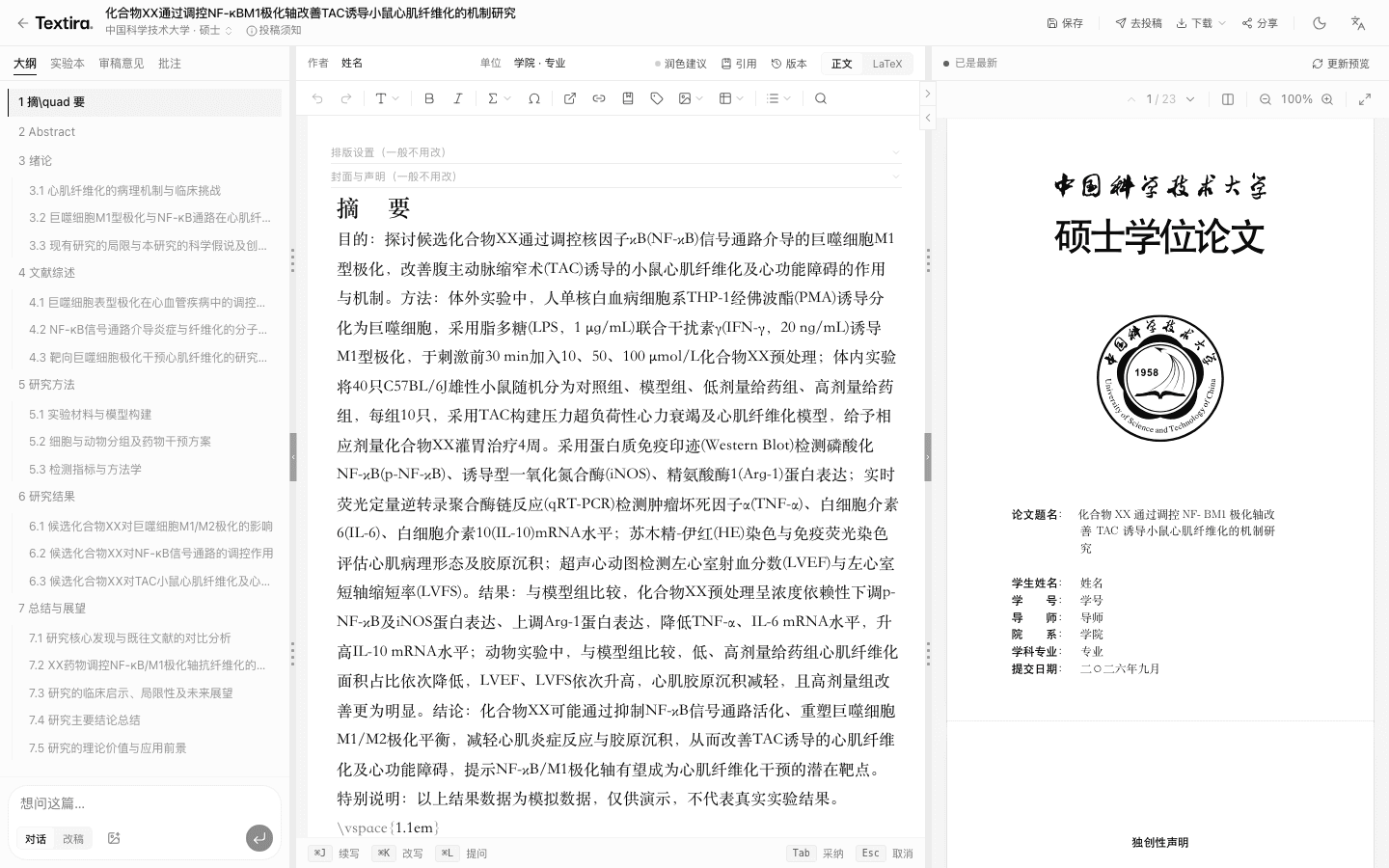
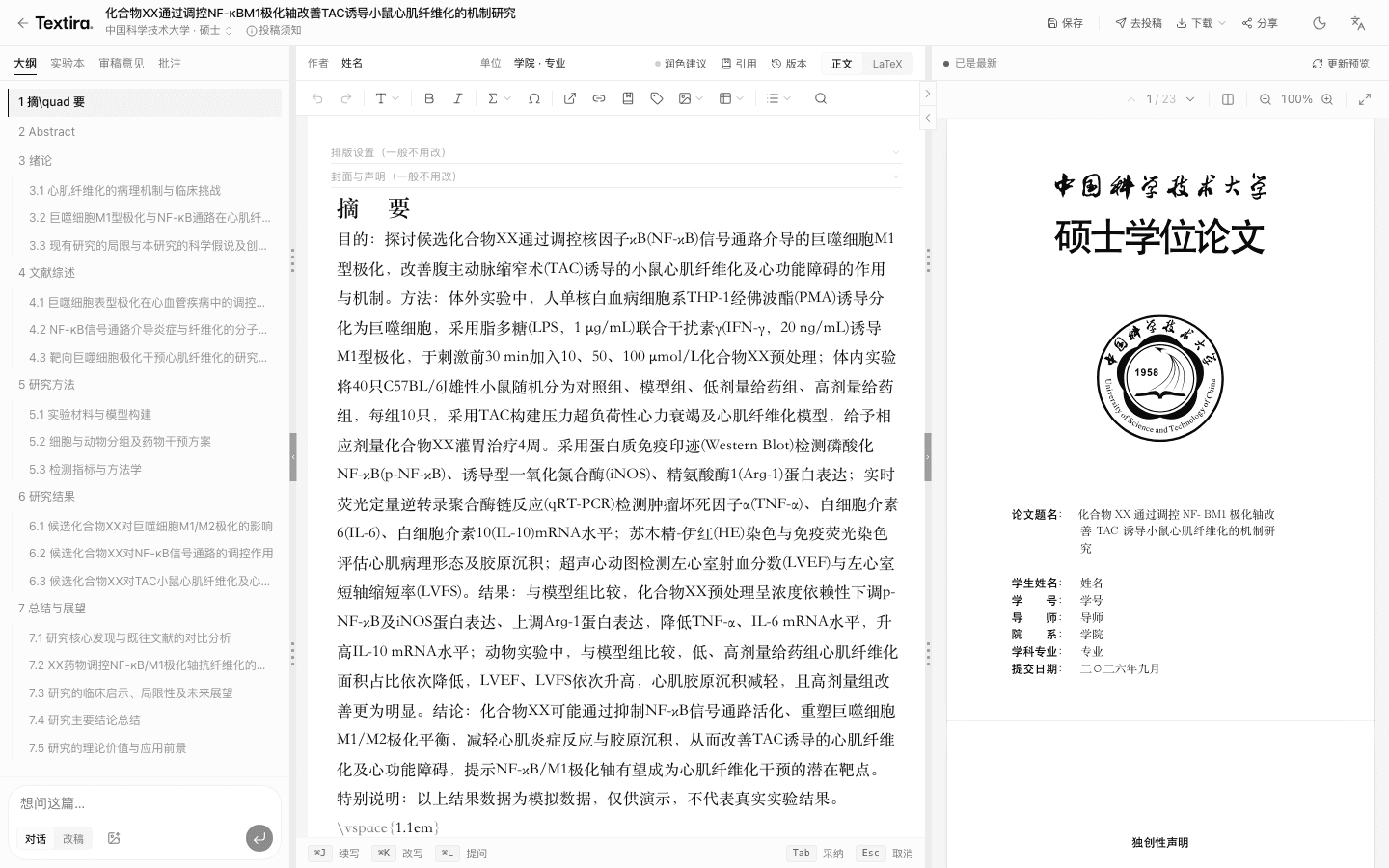
    Open workbench continues a paper you already have: outline on the left, text in the middle, layout preview on the right. The preview does not update as you type—click Update preview. The top bar can switch to another venue in the same language. A Chinese draft cannot use an English venue, and the reverse is also blocked.

    Workbench with outline, draft, and layout preview
  2. 02·Templates

    Preview the venue before you write in it

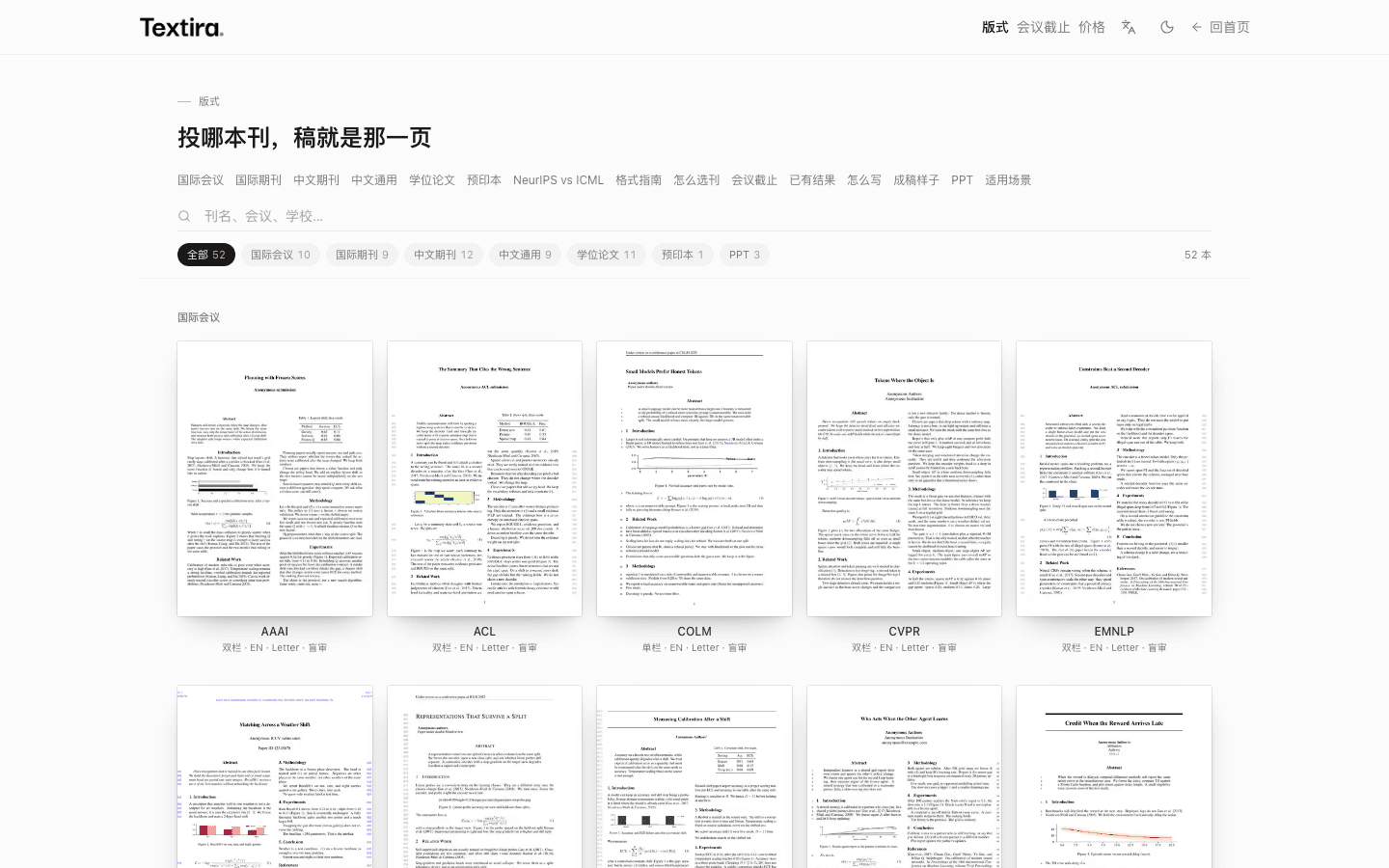
    Open Templates from the site nav. Filter by conference, journal, or thesis, or search by name. A card opens that venue’s own page, with page one, column count, title block, and language. Conference pages also show a countdown; the official site wins if the dates differ.

    The venue you pick is carried into the workbench. If it is wrong, switch to another venue in the same language from the workbench top bar, then Update preview.

    Template gallery filtered by conference, journal, and thesis
  3. 03·Experiment

    A separate top-bar place to design a run, analyze data, and make figures

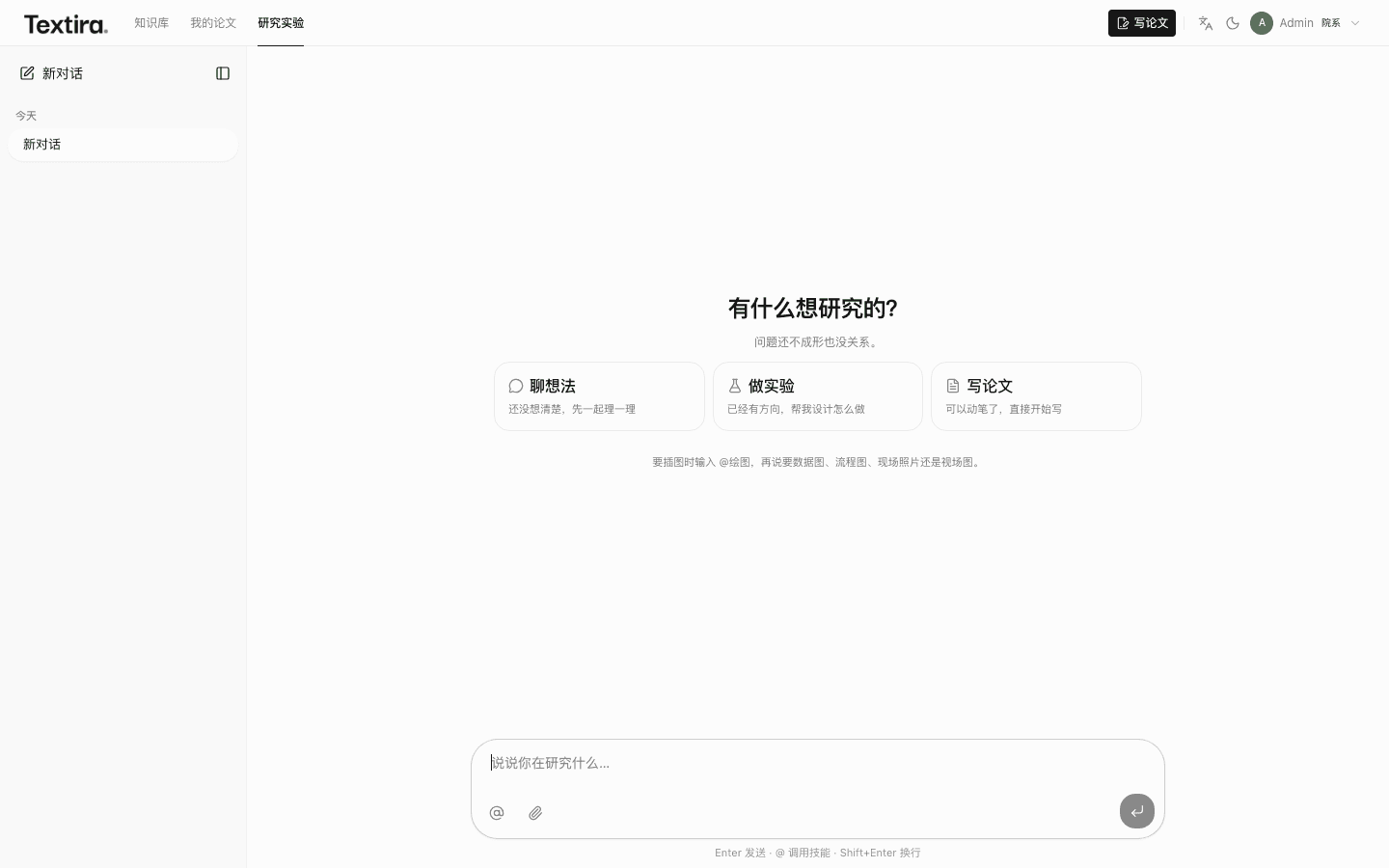
    Experiment in the top bar is a separate place from My papers. You can talk through the idea first, then design a run once methods, controls, and metrics are clear. Enter sends. Type @ to pick Design experiment, Data analysis, or Drawing.

    Take figures and results back to My papers when you write them up. Do not put demo numbers from the interface into a submission.

    Experiment: chat, design a run, or start writing
  4. 04·Knowledge

    PDFs for this paper live in Knowledge, so you can ask and cite

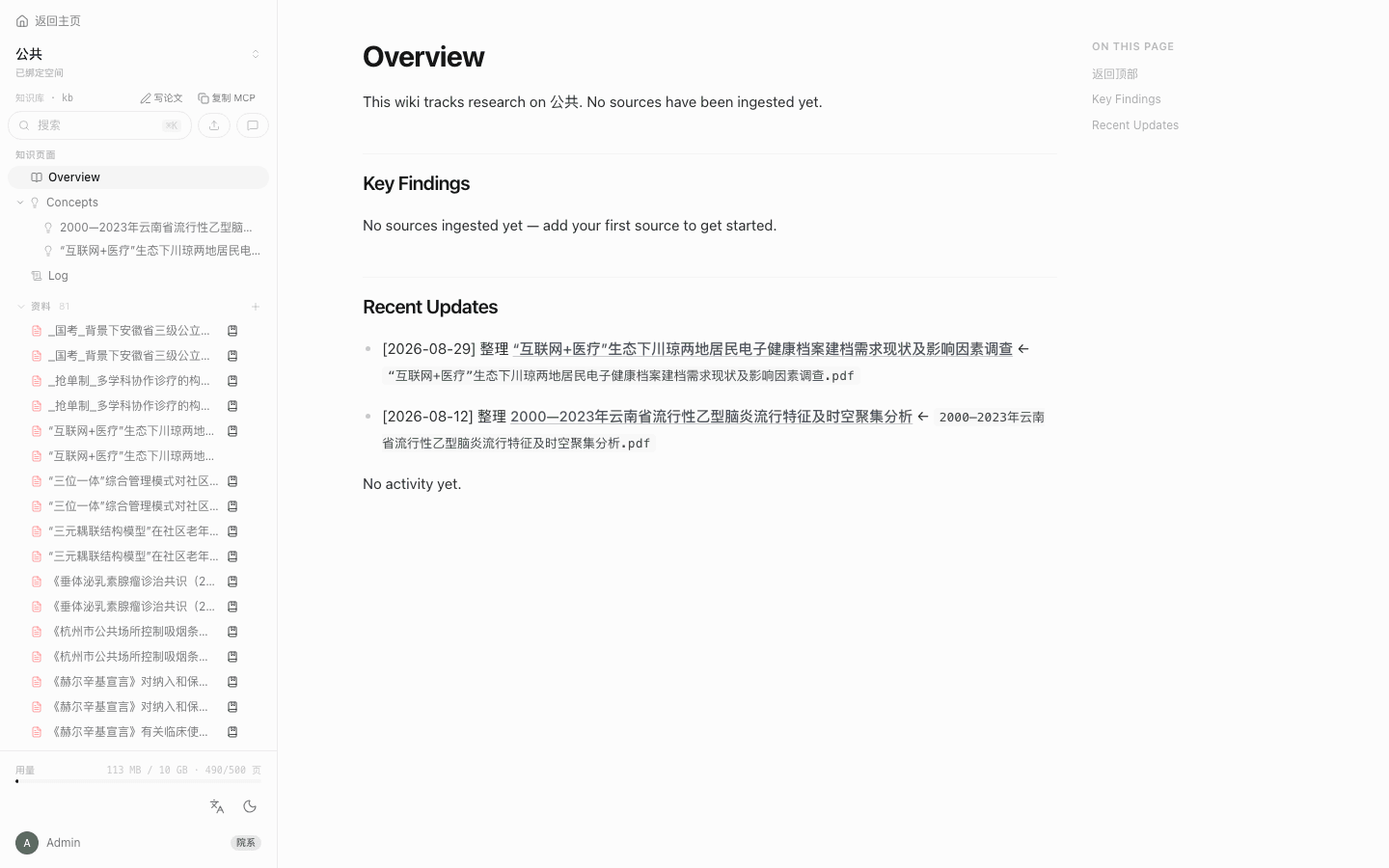
    Knowledge is the long-lived place for files. Create a space, name it, and upload the PDFs for this paper (and anything you will reopen later). Wait until files show as ready. Inside a space, files are on the left and generated pages in the middle.

    You can ask in two places. Inside a space, Ask answers only from files uploaded there. Under the draft in the workbench, Continue, Rewrite, and Ask sit next to the text; you can open the source and then decide what to put in the paper. If files are still processing, answers will be empty.

    A knowledge space with files on the left and pages in the middle
  5. 05·Download & submit

    Download the draft, share it for comments, pack it for the venue

    In the workbench or My papers, Download offers PDF, Word, LaTeX, or slides. For a double-blind venue, take the blind PDF and check page one and the acknowledgments for names.

    Share → Generate invite link lets a colleague comment in the browser. Update preview first so a PDF exists. The link lasts about 30 days.

    Submit → download the pack builds files for the venue currently selected. Check them against the official site before you upload. What to strip for double-blind, and what else belongs in the pack, is under Before you submit below.

    Download PDF, Word, LaTeX, slides, or a blind PDF

What you can do

When you need to…Open…
Register or sign in, then open My papersFirst time
Start a paper, upload Word / LaTeX, or open the workbenchWrite
Preview a journal, conference, or thesis first page and languageTemplates
See a conference deadline countdown (official site wins)Deadlines
Look up a university or institute, its site, and how much it publishesFind a lab
Talk through an idea, design a run, analyze data, or make a figureExperiment
Create a space and upload PDFs for this paperKnowledge
Ask from files you uploaded, then decide what to put in the draftAsk
Download PDF / Word / LaTeX, share for comments, or pack for the venueDownload & submit
Find the paper, and know it is still there after you close the tabWhere is it
Send it to an advisor, or work with someone who only uses WordSend it and They use Word
Look up a LaTeX command, environment, or column width without editing the venue shellLaTeX card and Commands

Where to start

  1. 1Sign in with email and open My papersEnter email and password, or register with a code sent to your inbox (password 6+ characters; invite code is optional). The top bar is then Knowledge, My papers, and Experiment. Forgot password is on the login page.
  2. 2Start a new paper, or preview the venue firstNew paper asks how to begin: from a topic, from an experiment, or by uploading one you have. For a paper you already have, Open workbench from the list in My papers. To see page one before you write, open Templates, filter by conference, journal, or thesis, and open a card. A Chinese draft cannot use an English venue.
  3. 3Put the PDFs for this paper in KnowledgeCreate a space, name it, upload, and wait until files are ready. Then Ask inside that space, or ask under the draft in the workbench. Answers come only from files you already uploaded.
  4. 4If the experiment is not done, open Experiment firstTalk through the idea, type @ to create a run, analyze data, or draw a figure. Bring results back to My papers when you write them up. Do not put demo numbers into a submission.

Send it to someone

Your papers sit under My papers. Closing the tab does not delete them. To show someone: download Word / PDF, or click Share for a link.

Before you submit

Venue rules are not on the product buttons. These guides cover the usual sticking points: choosing a venue, what to strip for double-blind, what to put in the pack, and Chinese journals versus conferences. The rest is under Before submit in the sidebar.

Keep this open while you write

Commands, environments, lengths. The venue template already set the column—look up how to write, do not resize the block.

You can also start here: Have results · How you write · Layouts · Deadlines · Find a lab · For labs

HTTP API and MCP for wiring writing into your own stack live under Developers. Developer docs